


Write customer replies
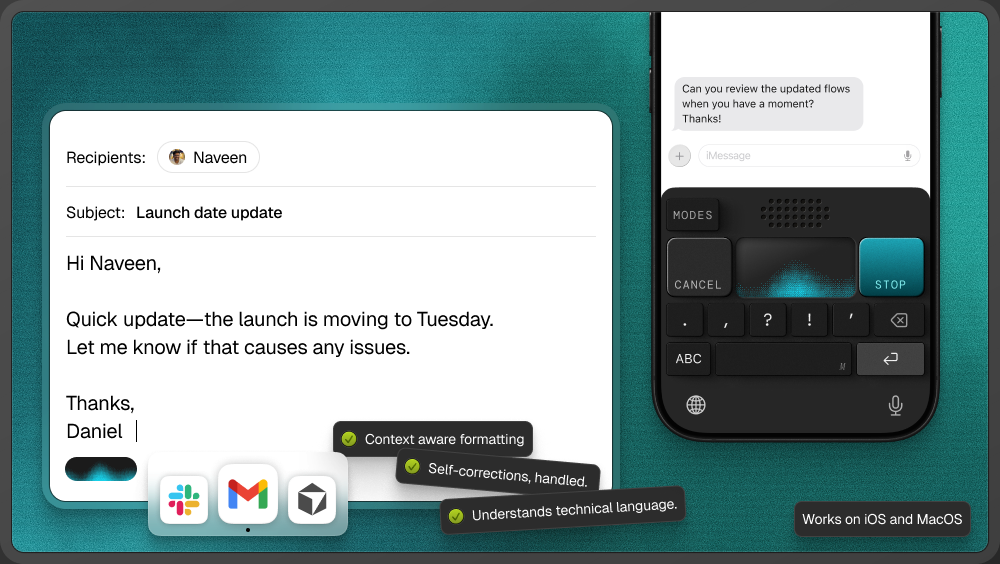
Dictate a troubleshooting explanation, answer a follow-up question, or walk a customer through the next step directly in the reply field. Review the wording before you send.
Monologue for customer support
Record support calls, revisit what the customer said, and bring the details into your next reply or handoff. Use Monologue Notes to keep the conversation and Dictation to write in the tools where you handle the case.
A support case can span a call, several messages, and more than one teammate. Keep the conversation in Monologue Notes so you can check what happened, what was tried, and what was promised. When it is time to respond or hand off the case, dictate the explanation while the details are fresh.
Dictate a troubleshooting explanation, answer a follow-up question, or walk a customer through the next step directly in the reply field. Review the wording before you send.
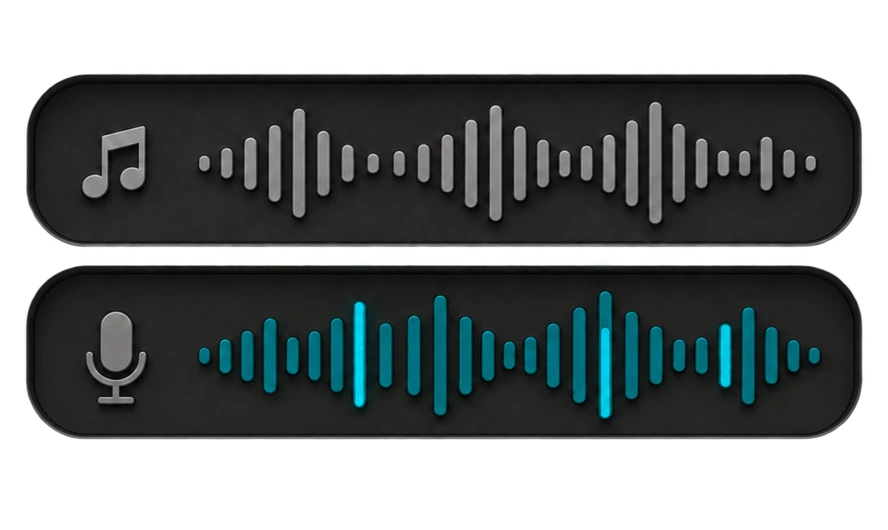
Record support calls in Monologue Notes on Mac without adding a meeting bot. Enable microphone and system audio to capture both sides, then return to the transcript and summary when you need an exact detail or want to prepare the next follow-up.
Use the saved call to check the customer’s goal, what went wrong, and what you have already tried. Dictate a handoff or ask a connected AI tool to draft one from the note, then review it before sharing with the next teammate.
“Thanks for walking through this with me. Your import finished, but the project is in the new workspace. Open the workspace menu at the top left and select Acme. Actually, select Acme Sandbox. Your tasks should appear there. If they still don’t, send me a screenshot of that workspace.”
“Thanks for walking through this with me. Your import finished, but the project is in the new workspace. Open the workspace menu at the top left and select Acme Sandbox. Your tasks should appear there. If they still don’t, send me a screenshot of that workspace.”
Teach Monologue customer names, plan names, product features, and troubleshooting terms you use repeatedly in replies and handoffs.
Correct a workspace name or revise a troubleshooting step while speaking. Monologue can keep the final wording rather than leaving both versions in the reply.
Use modes and custom instructions for a conversational customer reply or an internal handoff organized by problem, steps tried, and next action. You supply the facts; Monologue helps shape the text.
Dictate into the reply and internal-note fields where you handle tickets, as well as email, Slack, and your documentation tools. On Mac, record support calls in Notes with microphone and system audio enabled. Keep ticket status, sending, and assignment in your support tool.


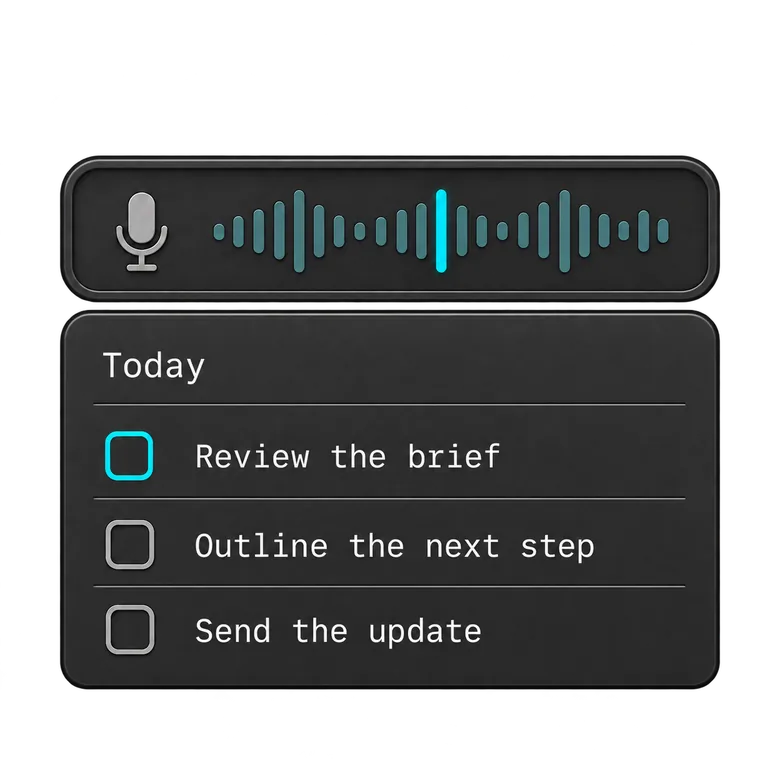
Connect Monologue Notes to a supported AI tool through MCP, API, or CLI. After setup, the tool can retrieve a saved support-call transcript and use it to draft a follow-up or prepare an escalation for you to review.
“Find the note from my latest support call with Acme. Draft a follow-up with the steps we tried and the next action we agreed on. Then prepare an internal handoff with the unresolved problem and missing information. Flag anything the note does not confirm.”
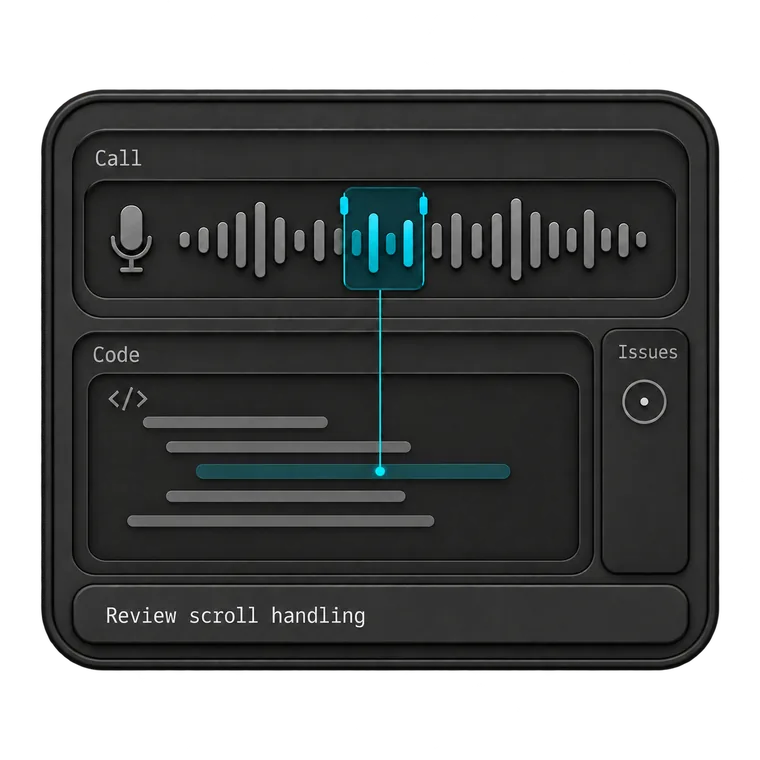
Give your coding agent the full context. Dictate prompts, describe bugs, and explain the changes you want to make.
Explore Monologue for developers
Start with what you want to say. Dictate first drafts, capture ideas on a walk, and return to recorded interviews as you write.
Explore Monologue for writers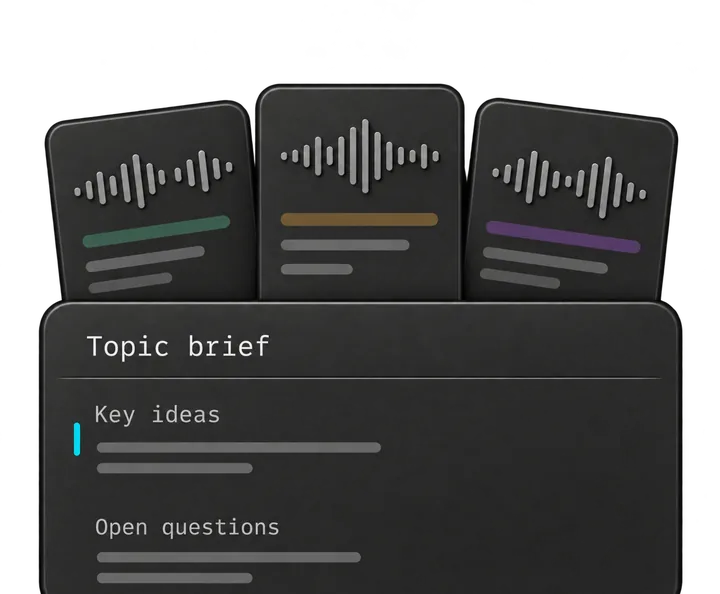
Talk through a brief, capture customer interviews, and explain decisions to your team. Keep the details close as you turn them into specs and next steps.
Explore Monologue for product managers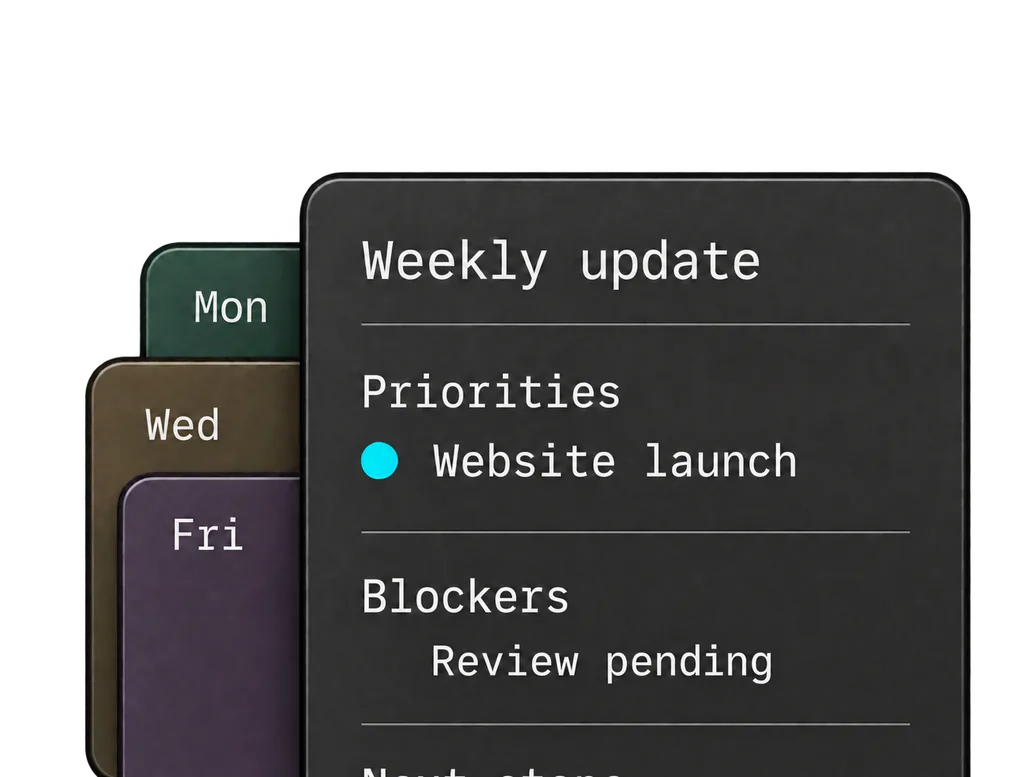
Dictate team updates, record decisions, and talk through ideas between meetings. Get your thinking down while it’s fresh.
Explore Monologue for founders and leadersYes. Select the reply field and start dictating. Monologue turns your speech into text at your cursor. Review customer names, troubleshooting steps, and any commitments before sending the reply yourself.
Yes. On Mac, enable microphone and system audio to capture both sides without a separate participant joining. System audio requires the relevant macOS permission. Let participants know you are recording.
Yes. After setup, supported tools can retrieve saved Notes through MCP, API, or CLI. You can ask for a follow-up draft or an escalation summary, then check it against the transcript before sharing.
Dictate the reply or handoff while the details are fresh.