Customer call → Product work
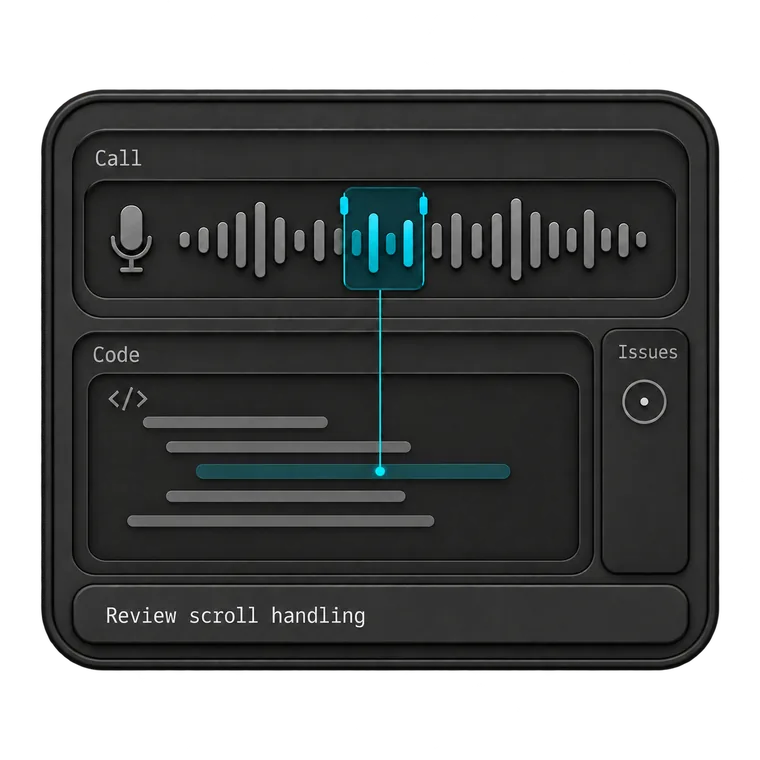
Find the latest customer call about a problem. Compare it with the relevant code and open issues. Then diagnose the problem and prepare a safe next step.
Use Notes MCP, API, or the Monologue CLI to let supported AI tools find and retrieve your saved Notes. Add skills and webhooks for repeatable workflows and automations.
An agent can find a Note by date or topic, retrieve the relevant transcript, and combine it with the work already in front of you.
Find the latest customer call about a problem. Compare it with the relevant code and open issues. Then diagnose the problem and prepare a safe next step.
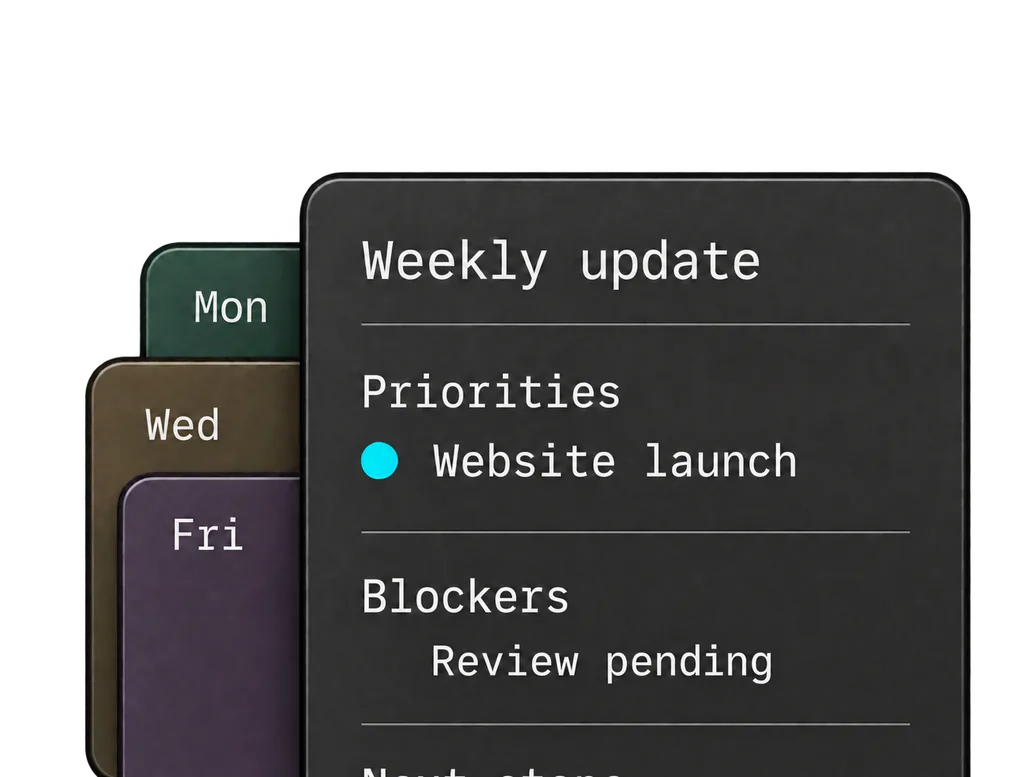
Find the relevant work Notes and organize documented changes, priorities, blockers, and next steps by project.
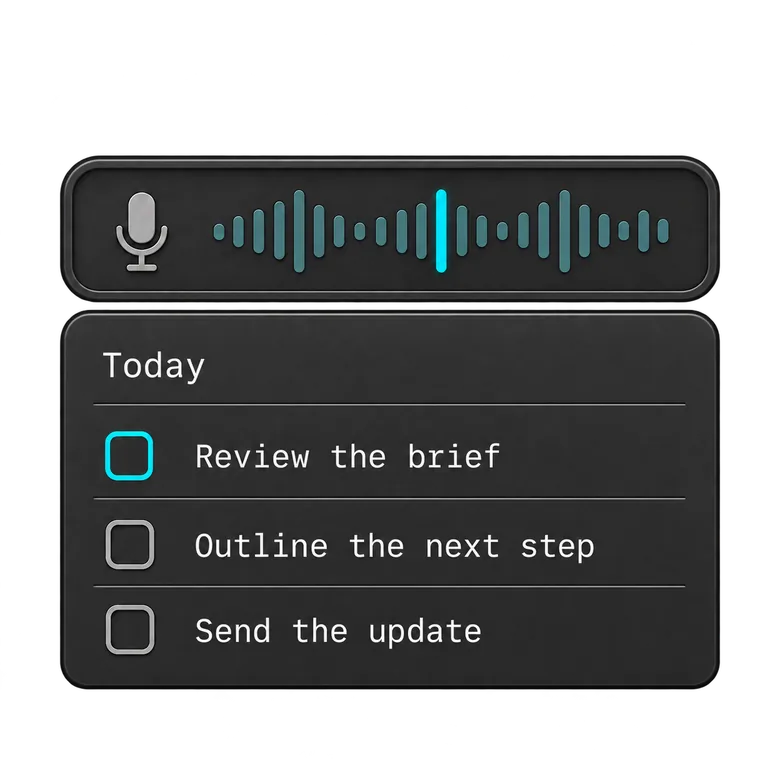
Turn a recording from a walk into decisions, questions, tasks, and a clear place to begin.
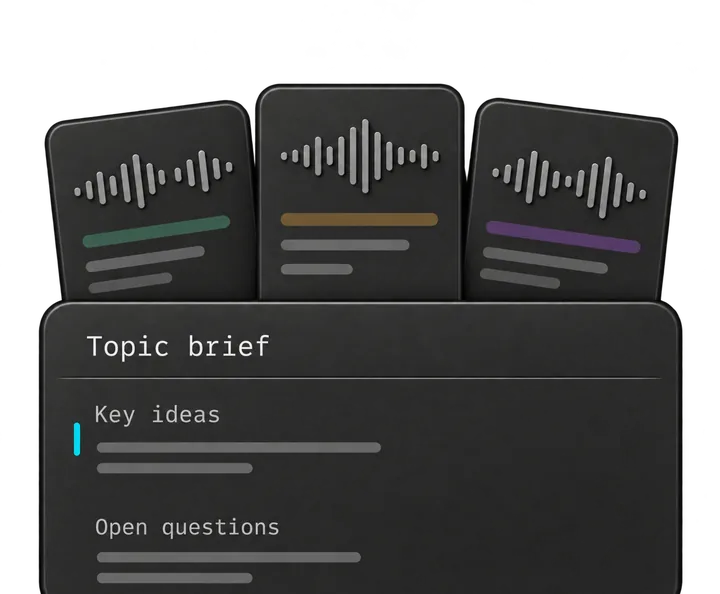
Search recordings from a period of time and bring together the strongest ideas, examples, contradictions, and unanswered questions.
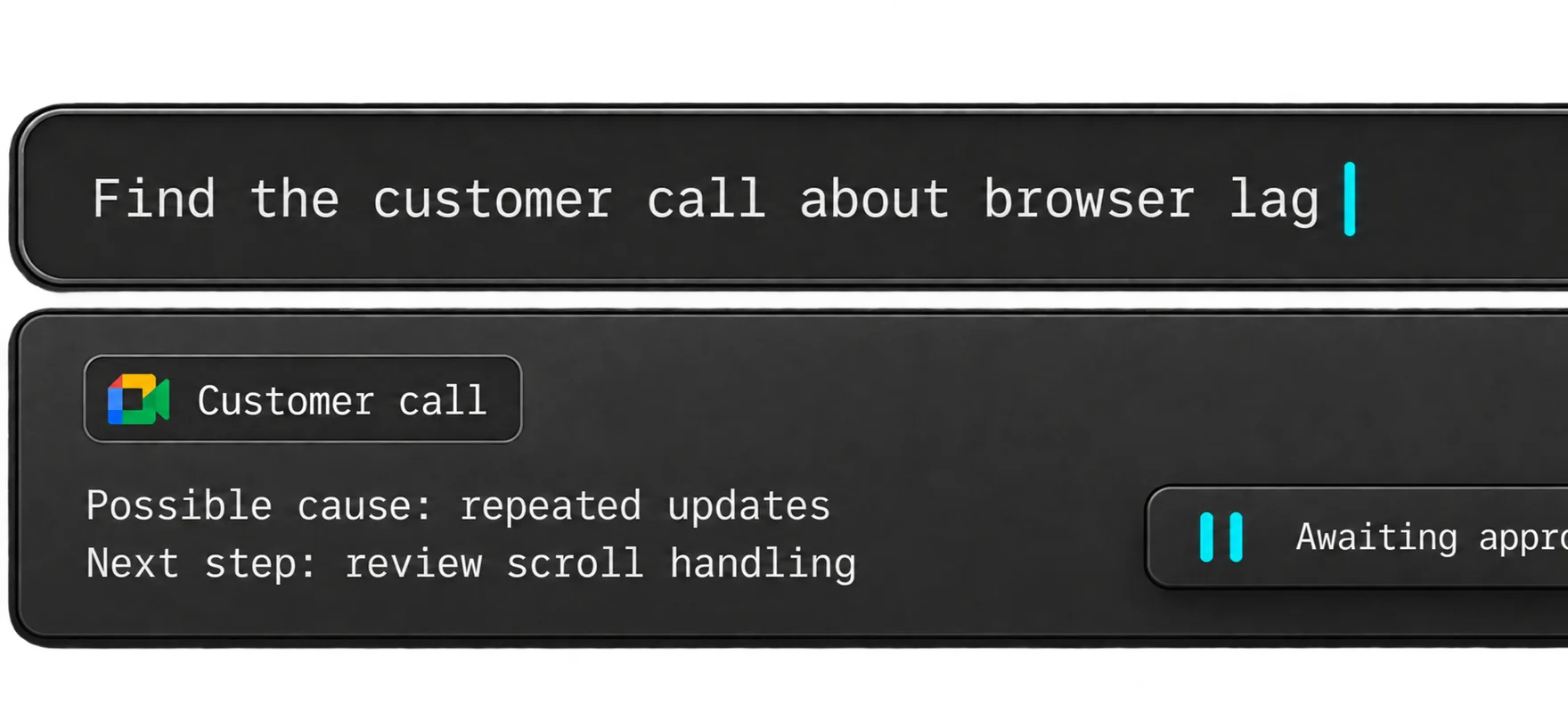
Find my latest customer call about browser lag. Review the relevant code and open issues, explain the likely cause, and draft the smallest safe fix. Wait for my approval before changing anything.
“Monologue has replaced Wispr Flow for me.”

Ben TossellFounder of MakerPad and Ben's Bites
Monologue provides several ways to bring saved Notes into AI tools and software.
Connect a compatible AI tool and ask for saved Notes in natural language.
Give software structured, read-only access to Notes, summaries, and transcripts.
Find and retrieve Notes from a terminal or development environment.
Give terminal-capable agents reusable instructions for finding Notes and applying them to a particular kind of work.
Start a workflow when a Note finishes processing, on accounts with webhooks enabled.
Your voice can do more than fill a text field. Keep a longer thought, capture a conversation, or bring what you have recorded into the tools where you work.
Effortless voice dictation that speaks your language. Speak about 3x faster than you type, with voice dictation that understands what you mean and turns rough speech into ready-to-use text.
Record longer thoughts, conversations, and meetings. Monologue transcribes and summarizes them, then syncs them across your devices.
A connected agent can search and read the Notes you authorize, including their titles, summaries, timestamps, and transcripts. That lets it turn conversations into meeting minutes, action items, or other work without you copying and pasting each transcript.
Use MCP for chat and desktop AI apps that support hosted connectors. Use the Monologue CLI for terminal workflows and local coding agents. Use the Notes API when you are building your own application or automation, and webhooks when a server should react to new Notes.
On Mac, open Settings → Notes → Connect an AI Agent, choose your AI tool, and run the setup command Monologue shows you. Approve the connection in your browser, then ask the tool to list a recent Note. MCP does not need a separate API key.
No. MCP, the CLI, and the Notes API are all read-only. They can list, search, and retrieve Notes, but they cannot create, edit, or delete them.
On Mac, open Settings → Notes → Monologue CLI and copy the install command. Onboarding asks for a Notes API key, which you can create in Settings → Notes → API Keys. The full key is shown only once, so copy it when it appears.
The Notes API lets you list Notes, search their titles, summaries, and transcripts, filter by date or tag, and retrieve a Note’s transcript. You can also download the original recording through a signed link that stays valid for one hour. Requests use a personal token with the notes:read scope.
Yes, where webhooks are enabled for your account. Monologue sends a signed event when a Note finishes processing, with its transcript, summary, and metadata, and another if processing fails. Manage endpoints in Settings → Notes → Webhooks.
A connected tool can read Notes available to your Monologue account. Only connect tools you trust, along with the people who can see their conversations, and review an agent’s answer before you share or act on it. Store API keys only in trusted tools and never in source control.
Remove the Monologue connection from your AI tool, or revoke it in Settings → Notes. To disconnect the CLI or an API integration, revoke its API key; requests using that key stop working immediately. Use a separate key for each integration so you can revoke one without affecting the others.
Join thousands of builders who stopped typing
and started talking, only with Monologue